


Onboarding parameters
Essential parameters for an effective Chargebackhit onboarding
Description of static parameters used by Chargebackhit for
Guide
The section provides an interface for managing MIDs, with capabilities for detailed inspection, data modification, filtering, and exporting.
MID
enrollment, including
Guide
Chargebackhit system prevents disputes and protects revenue by providing enriched transaction information to issuers and customers in real-time.
prevent
products.
Parameters overview


Parameters in payment platforms
If you use Stripe, Shopify, or Adyen, you can find the required information for the MID connection on their side.
Stripe
To find the descriptor
To request BIN/CAID from Stripe support for prevention alerts
To find ARNs
- Go to your Stripe account > Settings.
- Select the Business details tab.
- In the left-side panel, choose Public descriptor.
- Copy the descriptor and use it in Chargebackhit to add your MID.
To request BIN/CAID from Stripe support for prevention alerts
- Open the ticket with Stripe support or your point of contact.
- In your message, specify that you need BIN/CAID, for example:Hello Stripe Support Team,
We are integrating with the prevention alerts provider and need to obtain the BIN and CAID associated with our merchant account. Could you please confirm how we can access these parameters or provide them for our account?
Thank you - Submit the request and wait for the answer. Stripe support may either provide the BIN/CAID details directly or guide you to your acquiring bank if the data is not available.
To find ARNs
- Go to your Stripe account > Transactions > Refunds.
- Apply the following filters:
- Date: Last 120 days
- Card brand: Visa
- Refunded: At least 3 days ago
- Select the needed transaction.
- Find the ARN in the Payment breakdown section.
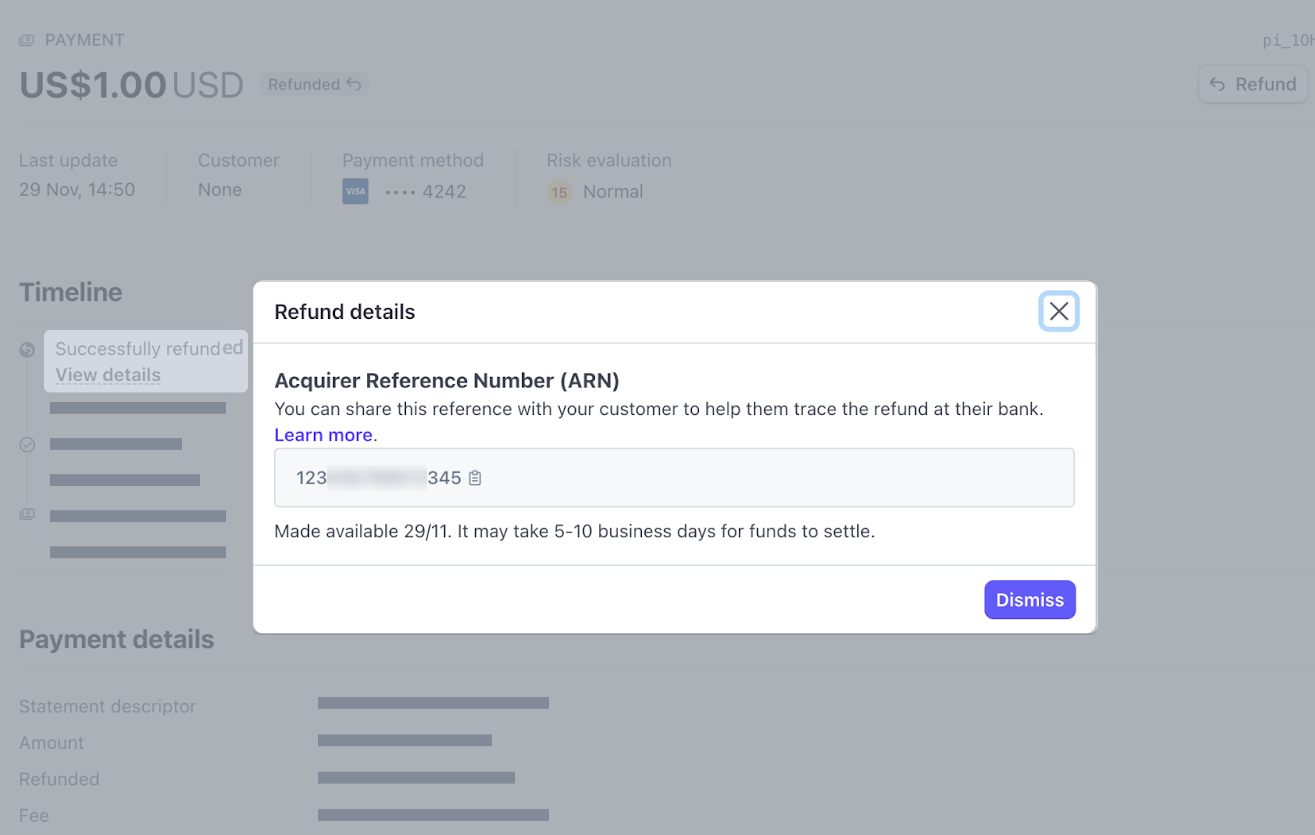
- Copy the ARN and use it in Chargebackhit to add your MID.
Shopify
To find the descriptor
To find the ARNs
- Go to your Shopify admin account > Settings.
- Select Payments.
- Under the Payment section, click Manage.
- Scroll to Customer billing statement to find the descriptor.
- Copy the descriptor and use it in Chargebackhit to add your MID.
Shopify adds prefix SP before the statement descriptor.
To find the ARNs
- Go to your Shopify admin account > Orders.
- In the search bar, type VISA to filter related transactions.
- Apply a filter based on the Refunded payment status.
Choose a refunded order that is at least 3 days old but no older than 120 days.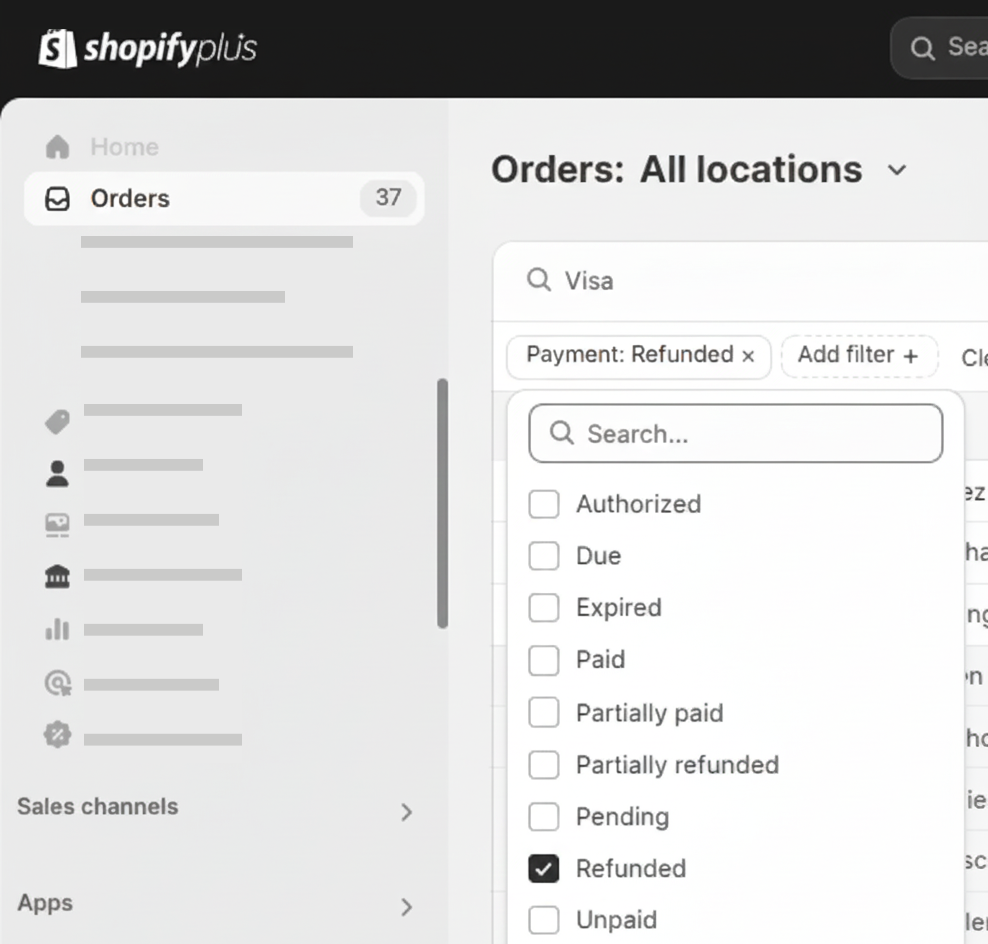
- Scroll down the order refund timeline to find the ARN.
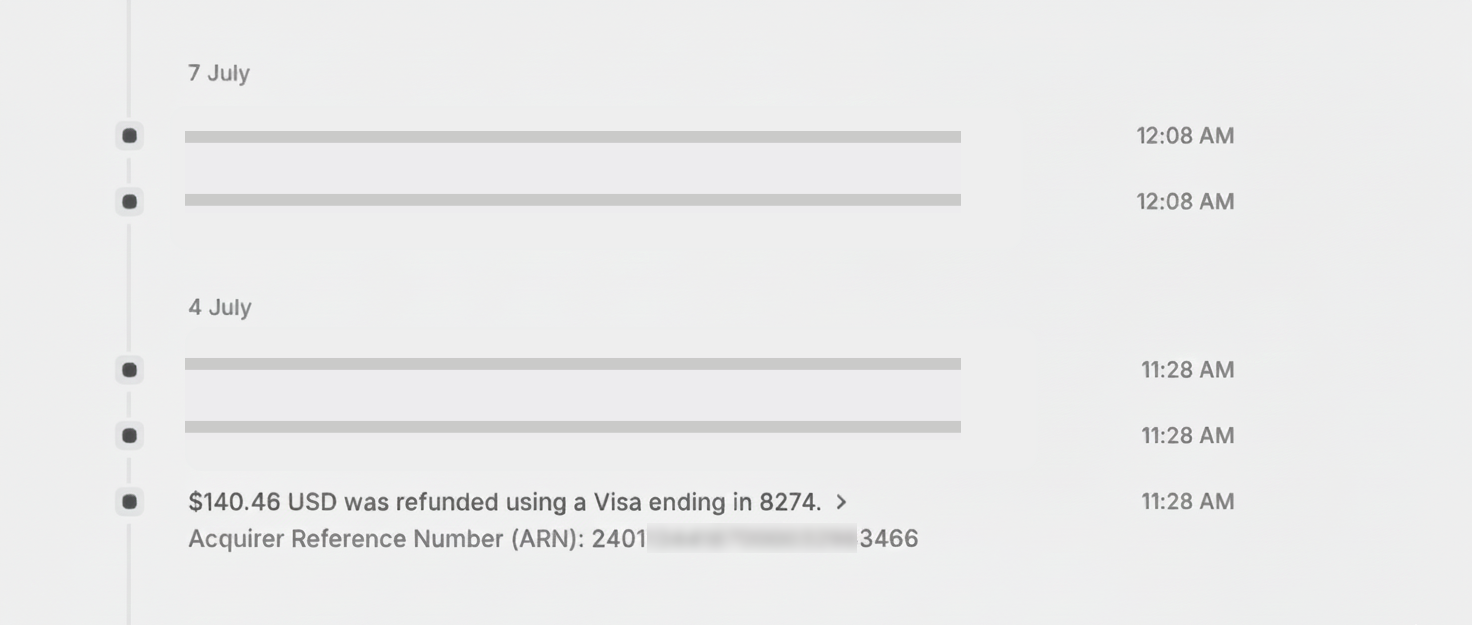
- Copy the ARN and use it in Chargebackhit to add your MID.
Visa's ARNs start with either 2 or 7 and are 23 digits long.
Adyen
To find the payment descriptor
To find the ARNs
- Log in to your Adyen Customer Area.
- Select the relevant account.
- Go to Settings and click on Transaction description.
- Find the payment descriptor shown on customer bank statements.
- Copy the descriptor and use it in Chargebackhit to add your MID.
To find the ARNs
- Log in to your Adyen Customer Area.
- Navigate to Transactions > Payments.
- Select the PSP reference for the refunded transaction.
- Check Payment events and find the ARN number under ARN.
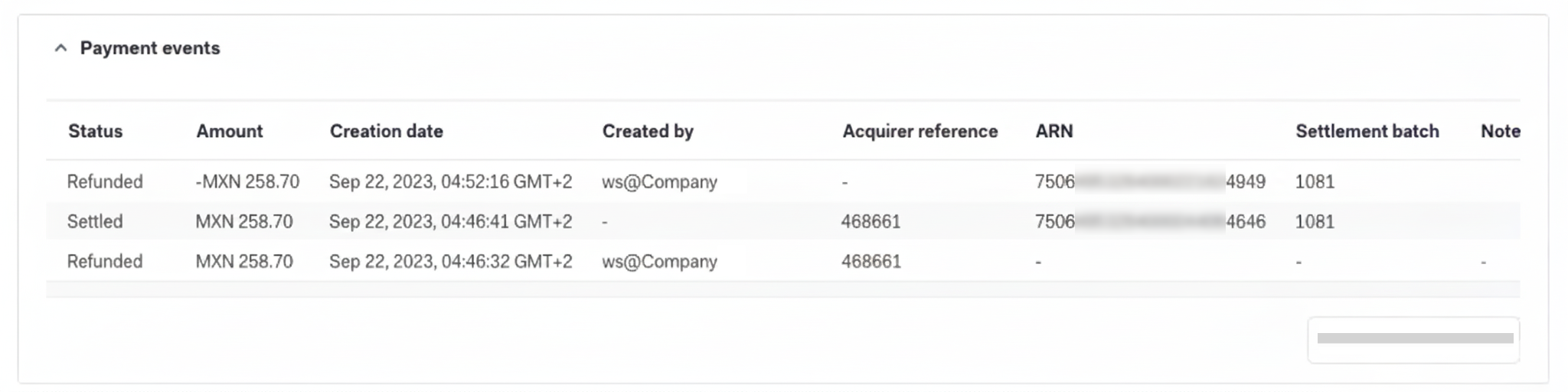
- Copy the ARN and use it in Chargebackhit to add your MID.
See the Adyen documentation for more details on descriptor and ARNs.
Looking for help? Contact us
Stay informed with Changelog