


dLocal integration centralizes dispute handling for cross-border transactions, automating import and representment.
- Dispute importdLocal disputes imported automatically.
- Automated representmentCompelling evidence files prepared and automatically submitted following standards and best practices.
Connect
Follow these steps to connect your dLocal account to Chargebackhit. The dLocal integration supports dispute management only, so it does not include alert matching, refunds, or subscription cancellation.
Step 1. Get API credentials in dLocal
Chargebackhit requires the dLocal x-login, x-trans-key, and secret key to connect to your account.
- Log in to the dLocal merchant dashboard.
- Go to Developers > Integration > API Credential.
- Make sure the environment toggle is not set to Test mode.
- Click on + Create new and enter the description
Chargebackhit. - Copy and securely store the x-login, x-trans-key, and secret key shown on screen.
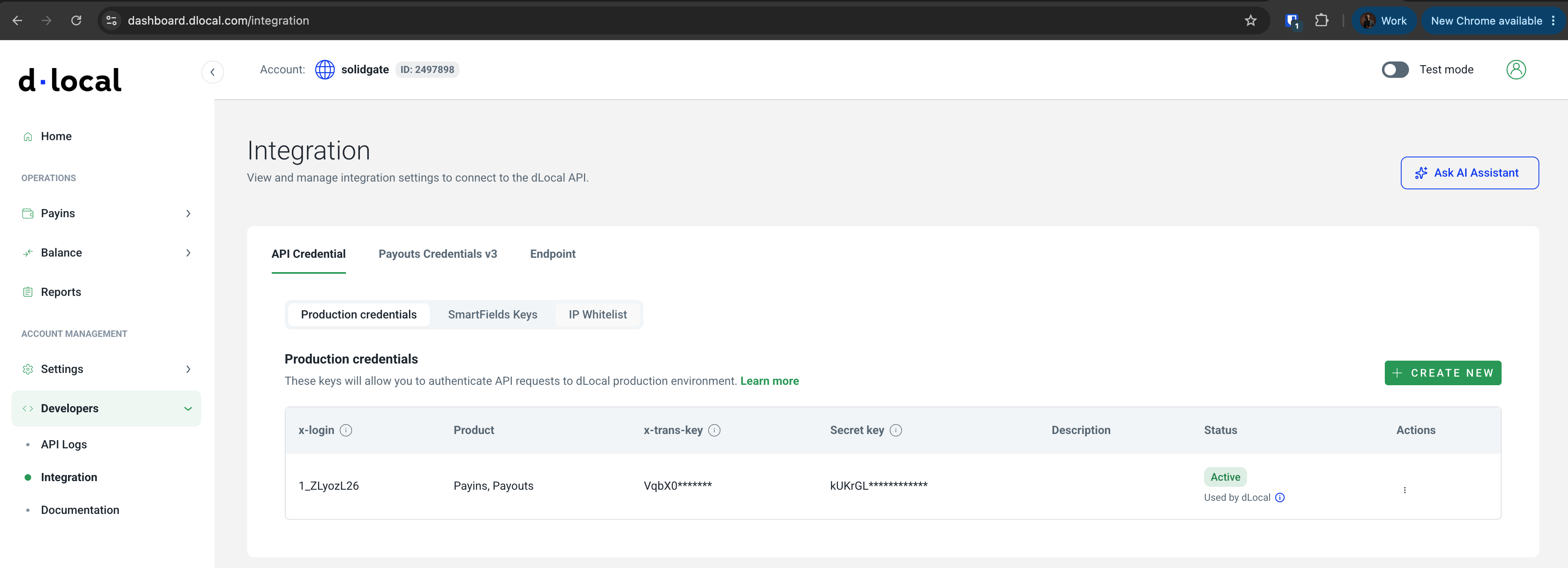
You can find more details in the get dLocal API credentials Reference .
Step 2. Add credentials to HUB
- Go to your Chargebackhit HUB account.
- In the top menu, click on Integrations.
- Next to the dLocal logo, click on Connect.
- Enter your x-login, x-trans-key, and secret key.
- Click on Submit.
After you submit the credentials, HUB generates three webhook URLs: Payins, Chargebacks, and Refunds. Copy all three URLs. You need them for the next step.
Step 3. Set webhook URLs in dLocal
- In the dLocal merchant dashboard, go to Developers > Integration > Endpoint.
- Paste the URLs copied from HUB into the matching fields:
- Payins notification URL
- Chargebacks URL
- Refunds URL
- Leave Callback URL as is.This field applies to payment redirects only.
- Click on Save.
Chargebackhit now receives payment, chargeback, and refund webhooks from dLocal to make your evidence stronger.
You can find more details in the dLocal initial settings configuration Reference .
If your notification URLs are already in use for another purpose, connect the dispute management service with the Chargebacks URL alone. Skipping the Payins and Refunds URLs means Chargebackhit does not receive payment data from dLocal and cannot enrich chargebacks with full payment information for evidence. Add this information manually through Guide
Add supporting evidence, such as receipts or delivery confirmations, to a dispute before it is submitted to the card network.
evidence enrichment
instead.
Final checklist
Before completing the integration, confirm you:
- Created a new dLocal API credential with the description
Chargebackhit - Saved the x-login, x-trans-key, and secret key
- Entered the credentials in the dLocal provider configuration in the Chargebackhit HUB
- Copied the Payins, Chargebacks, and Refunds webhook URLs from HUB
- Pasted the webhook URLs into the matching fields in the Endpoint settings of the dLocal merchant dashboard
- Completed your Guide
Add your business information to the HUB settings to enable and fully support the dispute representment process. business details in the Chargebackhit HUB settings